
I’m an Apple gal; I love my iPad, MacBook, and iPhone; however, the storage notification drives me insane. I seem to get them all the time. As soon as I go to do something, that annoying screen pops up telling me I don’t have enough storage.
So, inevitably, I end up paying for my iCloud storage, or fiddling around trying to find something to delete that never seems to make enough difference anyway. The last time this happened, I enlisted my brother’s help, who’s pretty good at this kind of thing.
I’m so glad I did, as he showed me exactly where all my storage is going, and clearing these not only fixed my problem but also took about 15 minutes. That’s it.
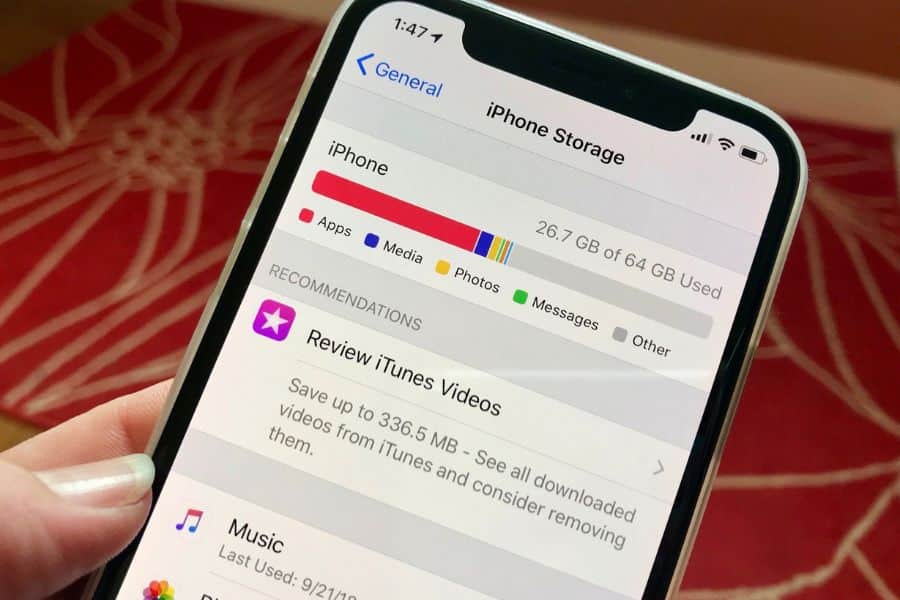
How to Free Up Space on Your iPhone
Before you cave and buy the 256 GB upgrade, or start deleting all your photos and videos, work through the list below.
1. Empty Your Downloads Folder
Every PDF you’ve ever tapped in an email, every attachment you saved from Safari, every boarding pass, every recipe, every insurance document all pile up in the Downloads folder inside the Files app, and most people never look there.
What To Do
Open the Files app, tap Browse at the bottom, then On My iPhone, then Downloads. If you’ve never cleaned this out, prepare yourself.
Swipe left on anything you don’t need, then tap Delete, or tap Select in the top right to mass-delete the lot.
I found a 340 MB video someone had sent me for a work project in 2022, three years’ worth of expired boarding passes, and goodness knows how many PDFs. All of it, gone in about a minute.
To stop the Downloads folder becoming a landfill again, you can also change where Safari saves its downloads. Go to Settings > Safari > Downloads, and switch it to iCloud Drive rather than On My iPhone. That way anything you save from a website goes to the cloud by default, not your local storage.
2. Delete Old Message Attachments And Set Them To Auto-Expire
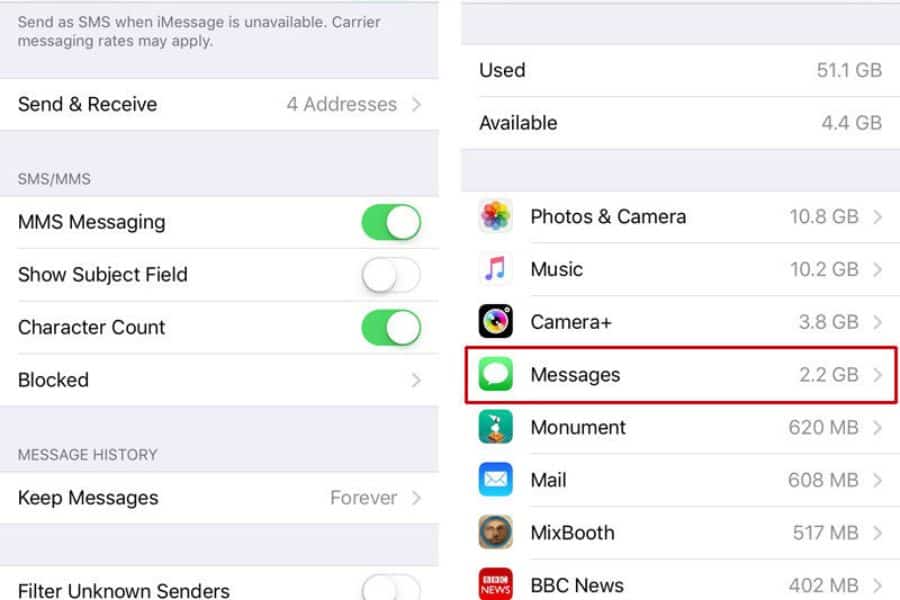
iMessage is a stealth storage villain. Every photo, video, meme, voice note, and location pin anyone has ever sent you is sitting on your phone forever, unless you tell it otherwise. If you’ve had the same phone for three years, Messages could easily be eating 10 GB or more.
What To Do
Go to Settings, General, iPhone Storage, and tap Messages. You’ll see a breakdown of Photos, Videos, GIFs and Stickers, and Other, each with a Review button. Tap through each one, and you can select the largest files and delete them without touching the actual text conversations. Videos are where the real money is; they’re often 200-500 MB each.
While you’re at it, set messages to delete themselves after a year. Settings > Messages > Keep Messages: change from Forever to 1 Year. If you actually need to keep a specific conversation, take screenshots of the important bits or save the photos to your camera roll first. This one change alone means the problem doesn’t build back up over time, which is really the point.
3. Turn On Optimize iPhone Storage For Photos
If you’re anything like me, you have hundreds of photos and videos on your phone. I hate deleting any of them, and they add up fast, especially if you have kids or grandkids.
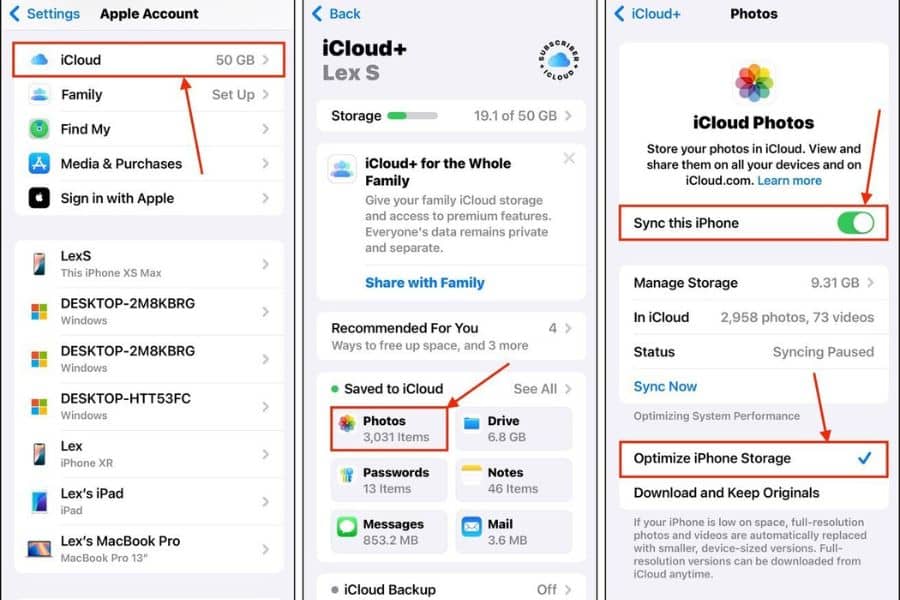
Optimize iPhone Storage keeps every photo you’ve ever taken in iCloud at full resolution, but stores smaller, phone-sized versions on the device itself. When you tap a photo, it downloads the full-res version in a second or two.
What To Do
Go to Settings, tap your name at the top, then iCloud, then Photos. Make sure Sync this iPhone is on, and choose Optimize iPhone Storage rather than Download and Keep Originals. Give it a few hours (or overnight if you have a big library), and you’ll see your Photos app shrink from about 60 GB to 8 or 10 GB.
The photos themselves haven’t gone anywhere. They’re all sitting safely in iCloud, and they still show up in your camera roll exactly as before. This one setting change was worth about 45 GB on my phone. If you’re not paying for iCloud, the 50 GB tier is less than a dollar a month.
4. Clear Safari’s Cache and Website Data
Every website you visit drops little files on your phone: images, cookies, scripts, the lot. Safari holds onto them so pages load faster next time, which is helpful in theory, but after a couple of years of browsing it adds up to a couple of gigs of stuff you’ll never look at again.
Mine was sitting at 2.4 GB when I checked, and I don’t even use Safari as my main browser.
What To Do
To see how much space Safari is using, go to Settings, General, iPhone Storage, and scroll down until you find Safari in the app list. Tap it, and you’ll see the website data broken out separately from the app itself.
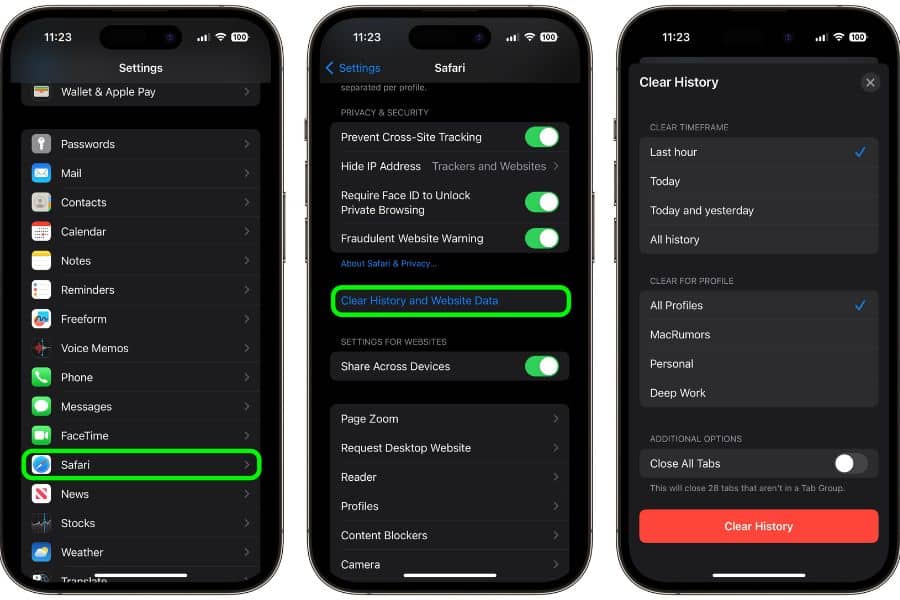
To actually clear it, back out, then go to Settings > Safari, and tap Clear History and Website Data.
Top Tip: Unfortunately, this also signs you out of most websites you’re logged into, so have your passwords handy or make sure they’re saved in iCloud Keychain first. It’s annoying, but it’s worth signing back into these sites again for the storage it saves.
5. Offload Bloated Apps Without Losing Your Data
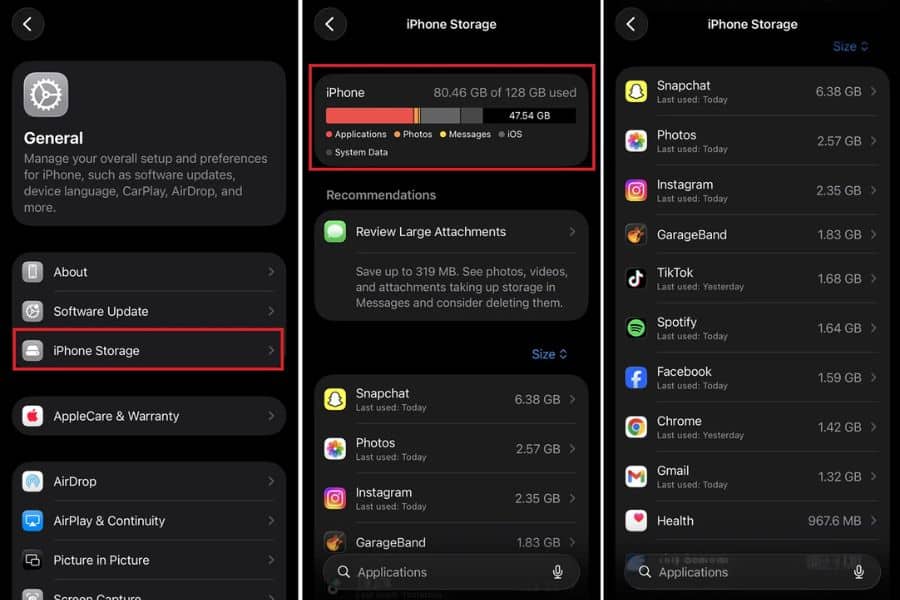
App store cache files are stored behind the scenes, and some are large. Instagram is famous for this, but Facebook, TikTok, Spotify, and any streaming app you use are all guilty.
What To Do
Go to Settings > General > iPhone Storage, then view the sorted list of apps. It’s ordered biggest to smallest. Tap into any of the offenders, and you’ll see two options: Offload App and Delete App.
Offload removes the app itself but keeps your documents and data, so when you reinstall it, you’re logged in, and everything is where you left it, minus the accumulated junk. Reinstalling from the App Store is a 30-second job.
For apps like Instagram and TikTok, offloading and reinstalling every few months is the cleanest way to keep them in check. If you find an app you haven’t opened in a year, just delete it properly. You can always get it back if you need it.
6. Let Your iPhone Delete Unused Apps Automatically
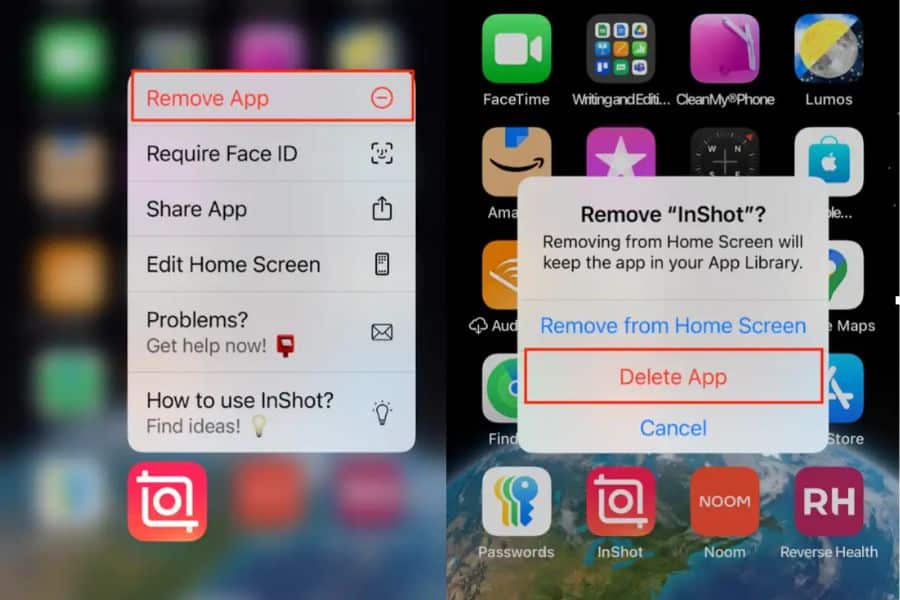
You have apps on your phone you’ve forgotten exist. The airline app from a flight you took in 2023. The parking app for a city you visited once. The receipt scanner you downloaded for one tax return.
Apple has a setting that deals with all of them for you, and almost nobody turns it on.
What To Do
Go to Settings, App Store, and scroll down to Offload Unused Apps. Flip it on. Now, whenever your storage gets low, your iPhone will automatically offload apps you haven’t opened in ages, keeping their icons and data so you can reinstall them with one tap if you ever need them again.
The icon stays on your home screen with a little cloud symbol next to it, and tapping it pulls the app straight back down from the App Store.
7. Turn Off Photo Stream And Shared Album Downloads
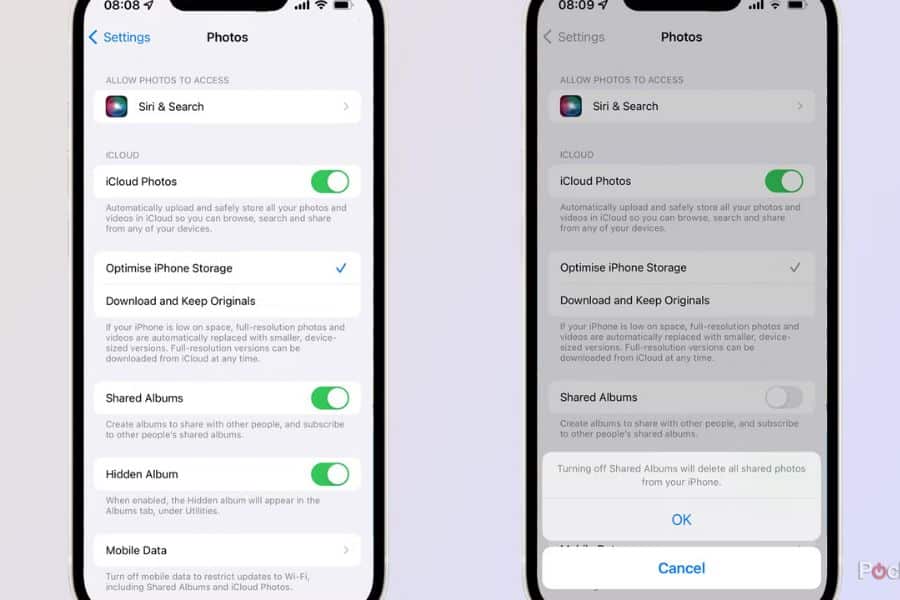
Photo Stream was Apple’s older system that automatically synced your last 30 days of photos across all your Apple devices, and if you’ve had an iPhone for years, you likely still have it turned on without realizing it.
It was officially discontinued in 2023, but the setting lingers on older phones.
What To Do
Go to Settings, tap your name, iCloud, Photos, and if you see My Photo Stream, switch it off.
While you’re in there, look at Shared Albums. Every album someone has ever shared with you (family photos from a wedding, holiday snaps from a friend, the class group’s soccer pictures) downloads onto your phone by default. If you’re in a lot of shared albums, this can add up to several gigabytes of photos you didn’t take and don’t need locally.
You can either turn Shared Albums off entirely, which removes them all from your device but keeps them in iCloud, or go into individual albums and unsubscribe from the ones you don’t care about.
8. Delete Downloaded Music, Podcasts And Videos You’ve Already Watched
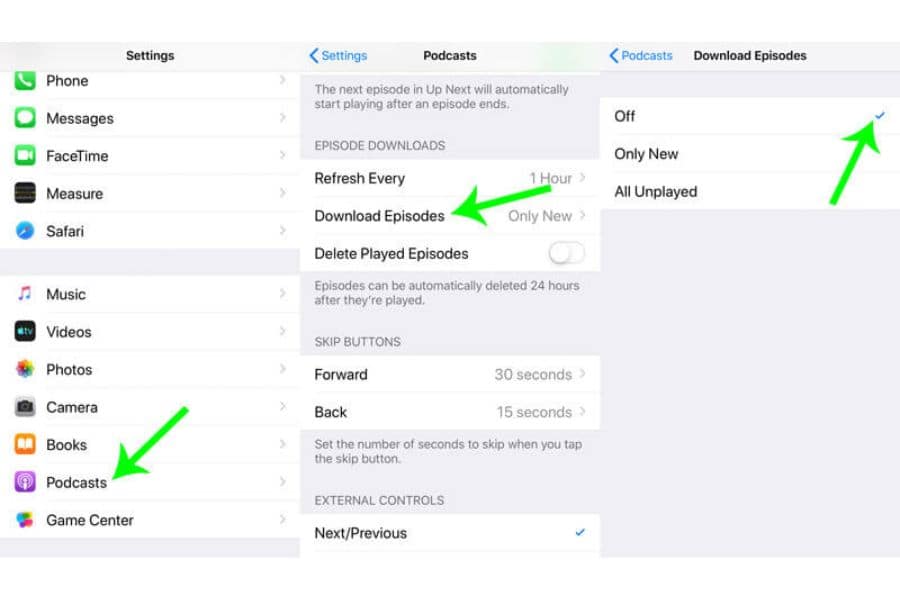
Streaming apps love to download things for offline playback and then forget to clean up after themselves. Netflix downloads shows you watched on a plane 18 months ago and still has them sitting there.
Spotify downloads playlists you no longer listen to. Apple Podcasts keeps every episode of every show you’ve ever subscribed to, whether you’ve played it or not.
What To Do
Open each of your streaming apps and hunt down the offline downloads section. On Netflix, it’s under My Netflix > Downloads. In Spotify, look at any playlist marked with the little green download arrow.
In Apple Podcasts, go to Library, Downloaded, and swipe left to delete individual episodes or use the settings to auto-delete after playing.
For Podcasts, Settings, Apps, Podcasts, set Delete Played Downloads to On; this means the problem sorts itself out from now on.
A single downloaded film in HD is around 2 GB. A season of a TV show can be 8 to 10. A month’s worth of podcast episodes for a subscriber to a few shows is easily 3 or 4 GB.
9. Tackle Your System Data
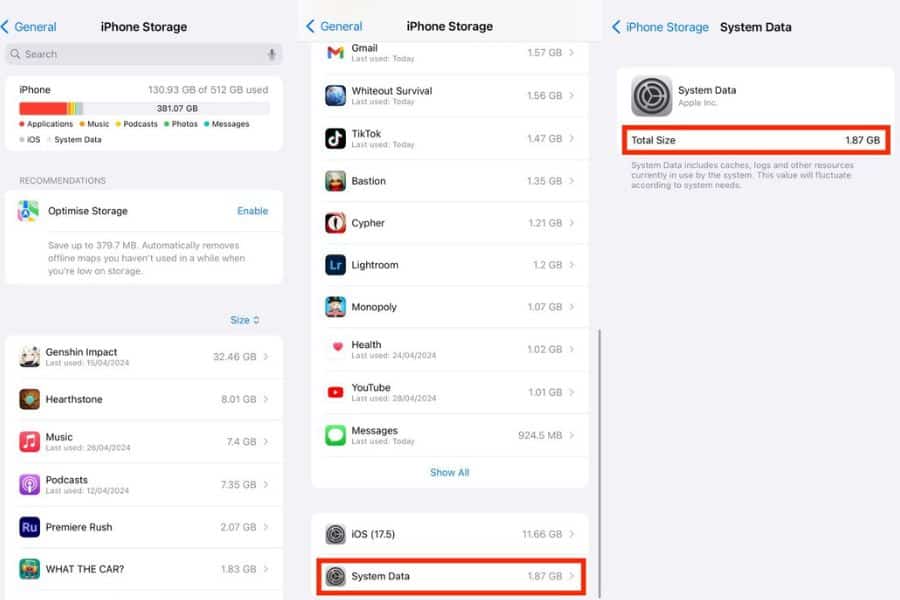
You can check yours in Settings > General > iPhone Storage, at the very bottom of the colored bar at the top. System Data is Apple’s catch-all bucket for everything that doesn’t fit neatly into another category: caches, logs, streaming buffers, Siri voices, downloaded fonts, updates that failed halfway through, and many other bits and pieces.
On a healthy phone, it should be 5-10 GB. On a phone that’s never been restarted or updated in ages, I’ve seen it balloon to 30 or 40.
The most effective way to shrink System Data is to back up your phone to iCloud or your computer, then restore it. This rebuilds everything from scratch and clears out all the accumulated cruft. It takes an hour or two but can claw back 10 to 20 GB.
The other option is to update to the latest iOS if you’re not already on it (updates often clear their own installation files), restart your phone properly by holding down the buttons rather than just locking the screen, and delete any languages or Siri voices you don’t use in Settings, General, Language and Region.