
Running out of iPhone storage always happens at the worst moment. You’re trying to take a photo of the grandkids or download a boarding pass, and then that message pops up telling you there’s no room left.
So you hastily start deleting things. Photos, videos, apps, messages, emails, they all get deleted. The only alternative is to pay Apple a monthly fee for more iCloud storage, which adds up over the years.
But there’s a better way. One hack frees up a surprising amount of space without you losing a single photo, message, or app, and without costing you a penny. Oh, and did I mention that you don’t need a tech degree to do it?

Why Your iPhone Fills Up Faster Than You Think
Your phone doesn’t just store the things you choose to keep. It also stores the things you’ve never thought about: old message attachments, app caches, downloaded files, bits of this and that from every app you use.
For many of us, the reason we don’t delete messages and photos is for sentimental reasons. But even GIFs and tiny stickers add up.
Think of it like a kitchen drawer. You open it once a year and wonder how it got so full. Your phone has dozens of those drawers, and you never open any of them.
The #1 Hack: Offload Your Apps Without Losing a Thing

Here’s the trick almost nobody knows about. Your iPhone has a built-in feature called Offload Unused Apps. It removes the app itself but keeps all your data, your settings, and your documents.
When you want the app back, you simply tap its icon, and it reinstalls with everything just as you left it.
To turn it on, go to Settings, then General, then Apps, then App Store. Scroll down, and you’ll see Offload Unused Apps with an Enable button next to it. Tap it, and your phone does the rest in the background.
The apps you haven’t opened in months get offloaded first. The icon stays on your home screen with a little cloud symbol next to it, so you know it’s there if you want it back. Nothing is lost; you haven’t had to delete any photos or messages, and even better, no money has gone to Apple.
For a lot of people, this one setting frees up several gigabytes straight away. The bigger the app, the more space you get back.
Found this useful? Get more like it in your inbox as a Lifestyle Library Insider.
Find Out What’s Eating Your Storage
Before you clear anything else, it’s worth seeing what’s actually taking up all that room. Go to Settings, then General, then iPhone Storage, and give it a few seconds to load.
The colored bar at the top shows how much space your photos, apps, messages, and everything else are using. Underneath that, it lists every app on your phone, with the biggest at the top.
It’s usually Photos and Messages hogging the most, with WhatsApp or Facebook not far behind, because they hang on to every video anyone has ever sent you.
You might also see a few suggestions from Apple just below the bar. Some of them are handy, but read them properly before you tap, because a couple of them delete things.
Five More Places Your Storage Is Hiding
Once offloading has done its bit, these will free up even more space.
The Photos You Thought You’d Deleted
Did you know that when you delete a photo, it doesn’t leave your phone straight away? It goes into an album called Recently Deleted and stays there for 30 days in case you change your mind, so if you’ve just had a big clear-out, all those pictures are still sitting there.
To empty it, open Photos, tap Collections, and scroll down to Utilities, where you’ll find Recently Deleted.
It’s locked, so you’ll need Face ID or your passcode to get in. Have a quick look through first, because once you delete them from here, there’s no getting them back.
The Same Photo Saved Twice
Duplicates creep in without you noticing, especially if you save pictures people send you or download the same photo from an email more than once. Your iPhone already knows which ones they are. In Photos, go to Collections, then Utilities, and look for Duplicates.
Tap Merge, and it keeps the best-quality copy and moves the rest to Recently Deleted. When I did this, I couldn’t believe how many duplicates I had.
All Those Videos in Your Messages
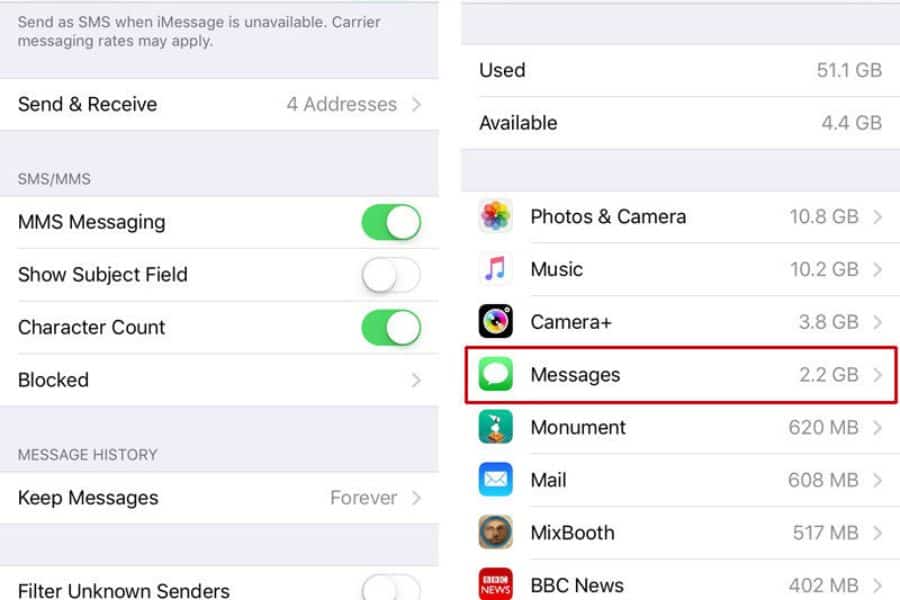
Every photo, video, and voice note anyone has ever sent you lives inside Messages, including the funny clips from three Christmases ago. They add up fast, and you’ve probably forgotten most of them.
Save the ones you love first. Open a chat, tap the person’s name at the top, and you’ll see every photo and video you’ve swapped. Press and hold any you want to keep and save them to Photos.
Then go back to Settings, General, iPhone Storage, and tap Messages. Tap Review Large Attachments, and the biggest files are listed first. Swipe left on anything you don’t need to delete it.
Downloads You’ve Forgotten About
If you downloaded a movie or a whole series on Netflix or Prime Video for a long flight, it’s probably still on your phone. The same goes for Spotify playlists you saved to listen to offline. Open each app, find its Downloads section, and clear out anything you’ve already watched or heard.
Podcasts are a sneaky one too. In your Podcasts settings, turn on Remove Played Downloads, and your phone clears each episode after you’ve played it.
The Apps You’ll Never Open Again
Offloading is perfect for the apps you might want back one day. But let’s be honest, there are a few you’ll never use again: the airline app from one trip, the parking app for a town you visited once, or the game the grandkids put on your phone last summer.
Delete those properly. Press and hold the icon, tap Remove App, then Delete App. Unlike offloading, this gets rid of the app’s data too, so only do it with the ones you’re sure about.
How to Stop It Filling Up Again
If you’re in a family WhatsApp group, you’ll know how many photos and videos get sent back and forth in a day. WhatsApp can save every single one of them to your phone, which is how it ends up near the top of that storage list. To stop it, open WhatsApp, tap Settings and Chats, and switch off Save to Photos. It’s worth having a look at Manage Storage too, under Storage and Data, because it shows you which chats are the worst offenders.
Next, check your Camera settings. Under Formats, make sure High Efficiency is selected. It’s usually on already, but if it isn’t, your photos are taking up more room than they need to, and they won’t look any different with it switched on.
Already paying Apple for extra iCloud space? Then you may as well make it work a bit harder. Switch on iCloud Photos and pick Optimize iPhone Storage, and the full-size versions of your pictures get tucked away in iCloud. What’s left on your phone are lighter copies, and you won’t notice the difference when you’re scrolling through them.
Bear in mind the free plan only gives you 5GB, which doesn’t go far once you’ve got a few years of photos, so this one only makes sense if you’re already paying.
After that, pop back to iPhone Storage once a month or so. It takes two minutes, and it’s much easier to keep on top of than to sort out in a panic when the warning pops up.
So next time you go to take a photo of the grandkids, your iPhone should have the storage. It’s a lot cheaper than buying a new phone, and it’s one less gadget on the e-waste pile.
Disclaimer: This article is for general information only and is not professional advice. It may contain affiliate links. Please see our full Editorial Policy for details.
Become a Lifestyle Library Insider
Health tips, money know-how, travel deals and garden ideas for life after 50, straight to your inbox.

Kylie Lang is a nationally syndicated travel journalist with bylines on the Associated Press Wire & more, a lifestyle writer, and the founder and editor of Your Lifestyle Library (yourlifestylelibrary.com). She holds a BA (Honours) in History from the University of Kent and is a member of the British Guild of Travel Writers.